Settings area
Choose the month and set how many people you need.
Free Excel shift schedule template
Download a simple Excel shift schedule template for monthly employee planning.
Use this free Excel shift schedule template as a monthly employee schedule template. Set required staff, mark working or unavailable days, lock assignments, and review daily staffing totals.
Excel file. No sign-in required for the template download. Built for simple monthly staff planning.
Template preview
The template includes a monthly employee schedule grid, editable employee rows, required staff settings, daily assigned counts, understaffed and overstaffed checks, and an employee totals report.
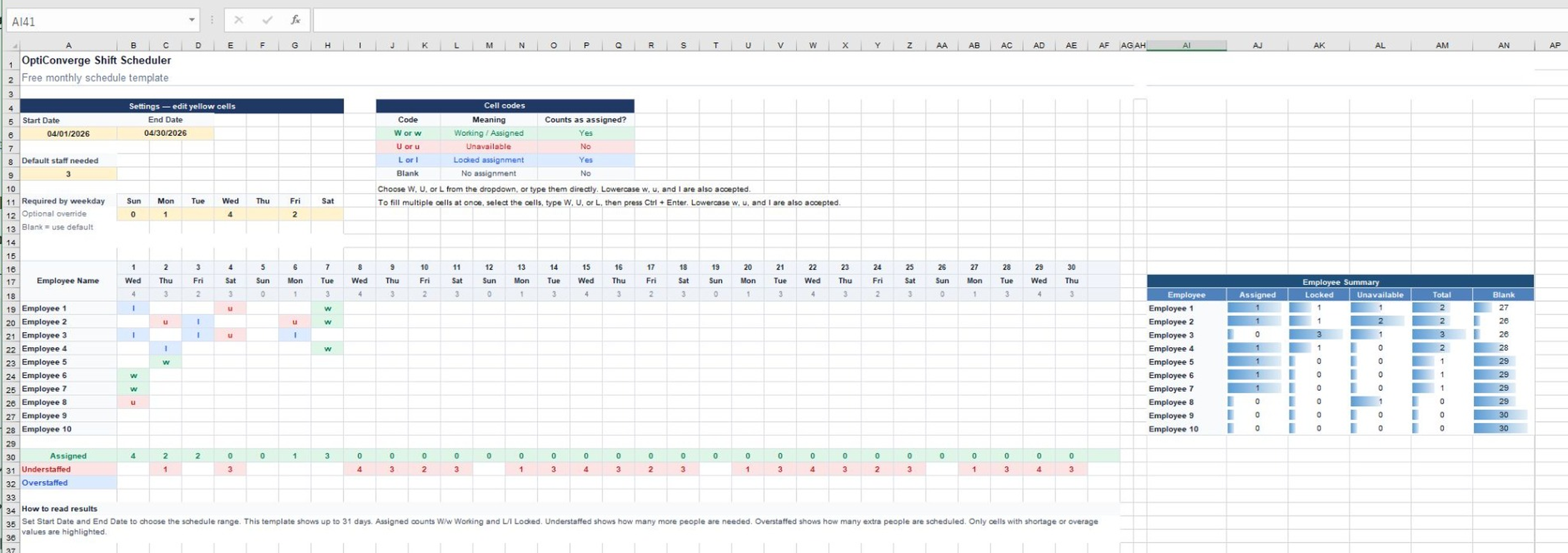
Choose the month and set how many people you need.
Enter W, U, L, or leave cells blank for each person and day.
See Assigned counts plus Understaffed and Overstaffed rows for each day.
Review simple totals for each employee.
Download
Download the Excel file and use it as a simple monthly employee schedule template. Edit employee names, set required staff, mark W, U, or L in the schedule grid, and review daily staffing checks.
Template use note: This free Excel template is provided for general planning purposes only. It does not build schedules for you, check labor laws, manage payroll, or replace your review. You are responsible for reviewing and using any schedule you create.
No sign-in required. Excel template for manual planning and review.
Best fit
This template is useful if you manage a small team and want a straightforward Excel file for monthly employee shift scheduling.
If your schedule changes often, or manual edits take too much time, the Standard Edition scheduling tool may be a better next step.
What’s included
Plan up to 31 days in a familiar spreadsheet layout.
Replace the example employees with your own team.
Set the default number of people needed, weekday needs, or date-specific overrides.
Use W, U, L, or blank cells to mark each day.
See Assigned counts plus Understaffed and Overstaffed rows for each day.
Use Excel’s own print options after editing the schedule for your team.
Review assigned, locked, unavailable, total, and blank counts by employee.
How to use
Use the settings area first, then fill the schedule grid and review the daily results.
Cell codes
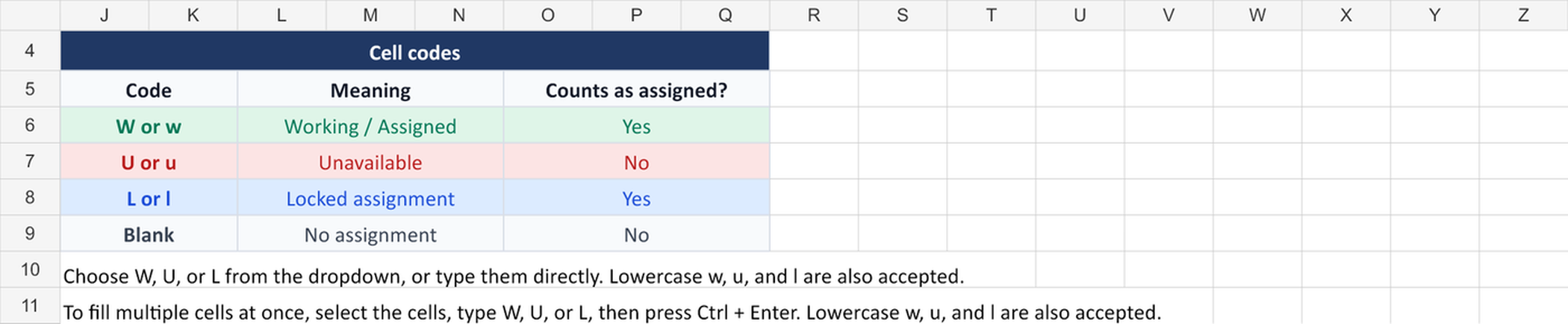
The template uses simple cell codes so the schedule is easy to scan. Lowercase w, u, and l work too.
| Code | Meaning | Counts as scheduled? |
|---|---|---|
| W | Working | Yes |
| U | Unavailable | No |
| L | Locked assignment — a shift you want to keep | Yes |
| Blank | No assignment | No |
Daily staffing check
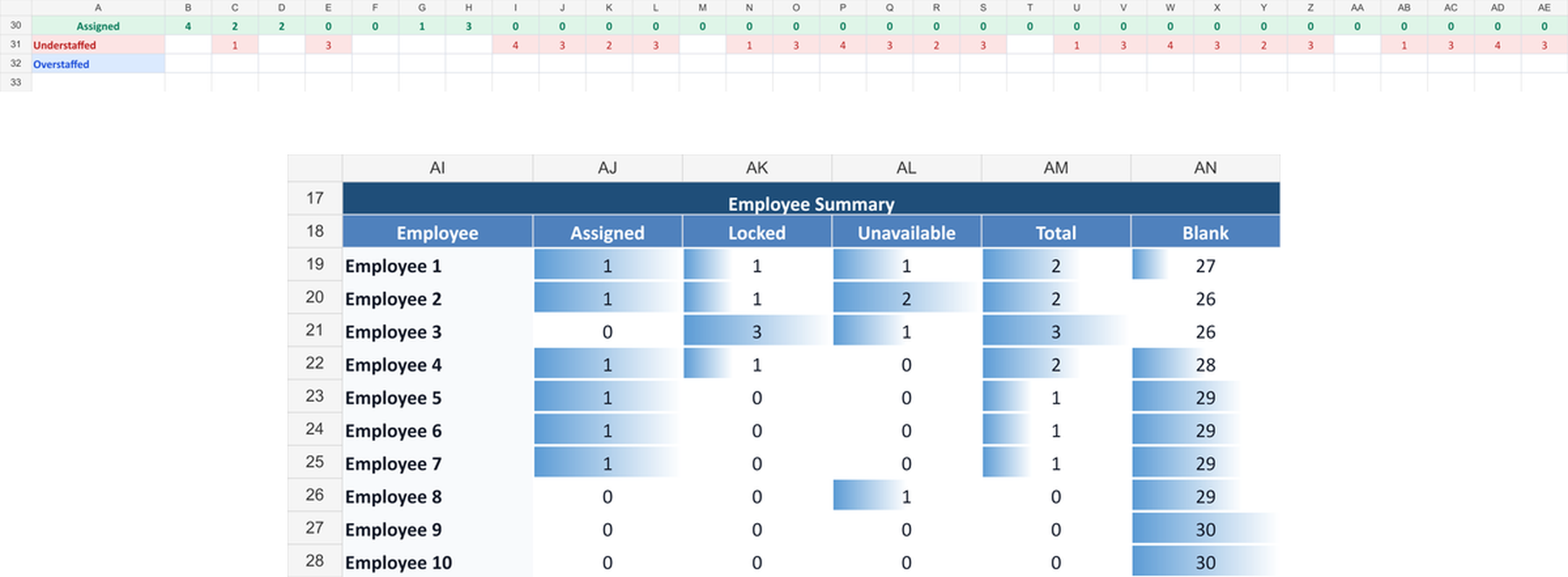
Use the required staff row to set how many people you need each day. As you fill the schedule, the template helps you review assigned counts, understaffed days, and overstaffed days.
How many people you need for the day.
How many people are scheduled for the day.
How many more people are needed.
How many people are scheduled above the number needed.
A simple summary of each employee’s assigned, locked, unavailable, total, and blank cells.
Monthly and weekly planning
This file is designed as a monthly employee shift schedule template. It shows up to 31 days in one view, so you can plan the full month and still review one week at a time inside the monthly grid.
If you only need a weekly shift schedule, use the date range and visible days to focus on one week. If your team changes shifts often, start with the Excel file and move to the scheduling tool when manual edits become hard to manage.
What it cannot do
This template helps you organize a schedule by hand. It does not create schedules automatically or make staffing decisions for you.
When manual editing starts taking too much time, try the scheduling tool.
Next step
Try the spreadsheet-style shift scheduler.
Start with the free Excel template. When manual edits, late changes, or understaffed days become hard to manage by hand, Standard Edition gives you a spreadsheet-style workflow for creating a draft schedule, editing it yourself, and running it again when things change.
Built for teams that still think in tables.
FAQ
Answers to common questions about the free Excel shift schedule template and when to move to the scheduling tool.
Yes. The Excel shift schedule template is free to download and does not require sign-in.
The file is designed as a monthly employee shift schedule template. It shows up to 31 days in one view, and you can review one week at a time inside the monthly grid.
The file is provided as an Excel workbook. Depending on your Google Sheets import settings, you may be able to open or convert it, but the download is the Excel file.
W means Working, U means Unavailable, and L means Locked assignment. A blank cell means no assignment.
No. This is a manual Excel template. It helps you organize and review a schedule, but it does not create schedules automatically.
No. The template does not check labor laws, workplace rules, payroll, time clocks, or compliance requirements. You are responsible for reviewing and using any schedule you create.
It is best for small businesses, restaurant and cafe managers, retail stores, service teams, and teams that still plan schedules in Excel or Google Sheets.
Understaffed shows how many more people are needed for a day based on the required staff number and the assigned count.
You can edit the Excel file and use Excel’s own print, save, or sharing options according to your needs.
If schedule changes, time off, or staffing gaps become hard to manage by hand, use the Standard Edition scheduling tool to create a draft schedule, edit it yourself, and rerun when things change.
Start here
Download the Excel employee schedule template, plan your month, and see whether a simple spreadsheet is enough. When manual changes become hard to manage, try the spreadsheet-style scheduler.